Configure SEAL Elastic Stack
The DPF log, statistics, audit and accounting data is administrated and visualized by means of Elastic Stack (Elasticsearch and Kibana). The installation is optional. For more information, refer to SEAL Elastic Stack documentation.
As of DPF 4.3.0, the Elastic Stack configuration ships with Digital Process Factory. This page describes, how to configure Elasticsearch, Kibana and Filebeat to work with Digital Process Factory.
Configure Elasticsearch and Kibana
Elasticsearch uses different indices for the log, statistics, audit and accounting data of Digital Process Factory.
For the different indices you can configure the housekeeping in Elasticsearch (Index Lifecycle Management, ILM).
For Kibana, SEAL Systems provides a preconfigured dashboard.
This section describes the configuration of Elasticsearch and Kibana via script. If you prefer to proceed manually in the Kibana user interface, refer to the step-by-step instructions in Configuring SEAL Elastic Stack by Hand.
Hint
SEAL Systems recommends to run the load-config by DPF updates as well.
The load-config Script
SEAL Elastic Stack provides the load-config.js script and several configuration files to create all necessary components for the housekeeping of the stored data of DPF.
You find the script in the following directory:
/opt/seal/seal-dpf-elasticstack-configuration/configuration/
Usage:
  node load-config.js -url http://localhost:9200 -user admin:secret -kurl http://localhost:5601

Options:
  -h | -help
    Print the help menu.
  -c | -configname
    Name of configuration subdirectory. By default, it is "dpf".
  -l | -url
    Elasticsearch URL. By default is "http://localhost:9200".
  -k | -kurl
    Kibana URL. By default is "http://localhost:5601".
  -u | -user
    Username and password for authenticating to Elasticsearch using Basic
    Authentication. The username and password should be separated by a
    colon (i.e., "admin:secret"). By default, no username and password are
    used.
  -o | -overwrite
    Do overwrite already existing workspaces and indices.
  -w | -workspace
    Select Kibana workspace to add the configuration to.
  -cd | -customdir
    One or more paths to a directory with customer specific configuration files to be installed.
    Multiple paths are to be separated by a semicolon.
    By default no customer specific configuration files are installed.
  -ca | -customargs
    One or more arguments to be passed to the customer specific configuration files.
    If there are more than one cutomdir separate sets of arguments must be separated by a semicolon.
    Keep the same order for the arguments as for the customdirs.
    Example: -ca "-foo|bar;-foo|baz"
  -n | -no-orig
    Do not install the original configuration files. Use this when you want to install customer files only.
The load-config.js script scans the seal-dpf subdirectory for JSON files and uses their content for the configuration of the different components of SEAL Elastic Stack. If a JSON file or a subdirectory does not exist, the script skips the configuration of the corresponding component.
Literature - Reference
Structure and content of the seal-dpf subdirectory is described in Elastic Stack Configuration Files.
Execute the Script
-
Stop the Filebeat services on all DPF servers to stop the data transfer to Elasticsearch:
stop-service seal-dpf-filebeat -
By default, the configuration matches the installation of Digital Process Factory. If you still need to modify the configuration, do this in the directory structure described in Elastic Stack Configuration Files.
-
In a shell, open the following directory:
/opt/seal/seal-dpf-elasticstack-configuration/ -
Start the
load-configscript for Digital Process Factory. Specify the URLs for Kibana and Elasticseach:sudo ./node configuration/load-config.js -k kibana_url -l elasticsearch_url-
kibana_url: Kibana URL, default:http://localhost:5601 -
elasticsearch_url: Elasticsearch URL, default:http://localhost:9200
Hint - overwriting
By default, the
load-configscript works in non-overwrite mode. It whether the specific index exists and adds only settings that are missing.With option
-othe script overwrites already existing workspaces and indices.Independent of the operation mode, the
load-configscript always overwrites-
dashboard configurations to protect the consistency of the consecutive configurations
-
index templates
-
any non-customer-specific pipelines
For details on pipelines, see Configuring pipelines.
The script never overwrites
-
index lifecycle policies
-
any customer-specific pipelines.
Their names must contain the string
custom. They are only created, if not yet existing.If you wish to have them updated, you have to delete them manually in the Kibana user interface before you start the version update.
For details on pipelines, see Configuring pipelines.
Hint - several products reporting to one Elasticsearch server
If you wish to have several products writing to the same Elasticsearch server, you can manually create a common index pattern for the audit indices as described in Creating an Index Pattern for the Audit Indices.
-
-
Start the Filebeat services on all DPF servers:
dpf service start seal-dpf-filebeat
Backup Files
Before changing existing settings, the load-config script saves the corresponding original files in the following directory:
/opt/seal/seal-dpf-elasticstack-configuration/configuration/tmp/backup
load-config Log File
The load-config script logs its own error messages in a log file in the following directory:
/opt/seal/seal-dpf-elasticstack-configuration/configuration/tmp/log
Indices for Digital Process Factory
In some cases you need to adjust DPF environment variables, e. g. if you use a Kibana workspace.
In the DPF system, the indices used in Elasticsearch for the log and statistics data of Digital Process Factory are specified in the following keys:
Configure Filebeat
-
Open the Filebeat configuration file in an editor.
/opt/seal/etc/filebeat-dpf.yml -
In the
output.elasticsearchsection, adjust and activate the following values as needed:-
hosts: change it to the FQDN if SSL will be used or the Elasticsearch installation is on another server, aka management server -
usernameandpassword: as of Elastic Stack 7.17.3, minimal security is activated automatically; thus credentials have to be specified
Hint - Elasticsearch credentials
When installing Elastic Stack, minimal security is automatically activated and a random password created for the
elasticuser. Take note of it during the Elastic Stack server installation.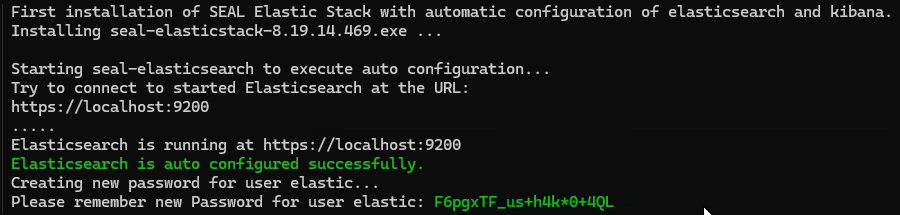
You can reset the automatically generated password once, refer to Resetting Passwords.
Hint - default configuration
With each installation or update, a file named
filebeat-dpf.yml.<version>.deliverycontaining the default configuration is stored in the configuration directory/opt/seal/etc/. That way, customer specific changes can easily be identified. -
Filebeat Log Files
You find the Filebeat log files in the following directory:
/var/log/seal/
As of Filebeat 8.0.0, Elastic changed the names of Filebeat log files. The name specified in the configuration file is used as base name. It is supplemented with a timestamp and a rotation ID. Instead of seal-filebeat.log, the current log file is now, for example, seal-dpf-filebeat.log-20260526-3.ndjson. Because of the rotation ID, the name of the most recent log file changes with each rotation. The default rotation is 7.